
HAR file (or HTTP Archive Format) is an archive file format that contains logs from your browser.
We often receive issue reports that are hard to debug as they are specific to a specific browser or product instance. Sending us HAR file gives us that extra context and helps in reproducing those complex issues.
Please follow the steps below based your browser.
Chrome
-
Navigate to the page where you experience the issue
-
Go setting on the top right (⋮) > More Tools > Developer Tools
-
Navigate to the
NetworkTab in the opened tool -
Check the
Preserve logoption -
Reproduce the issue
-
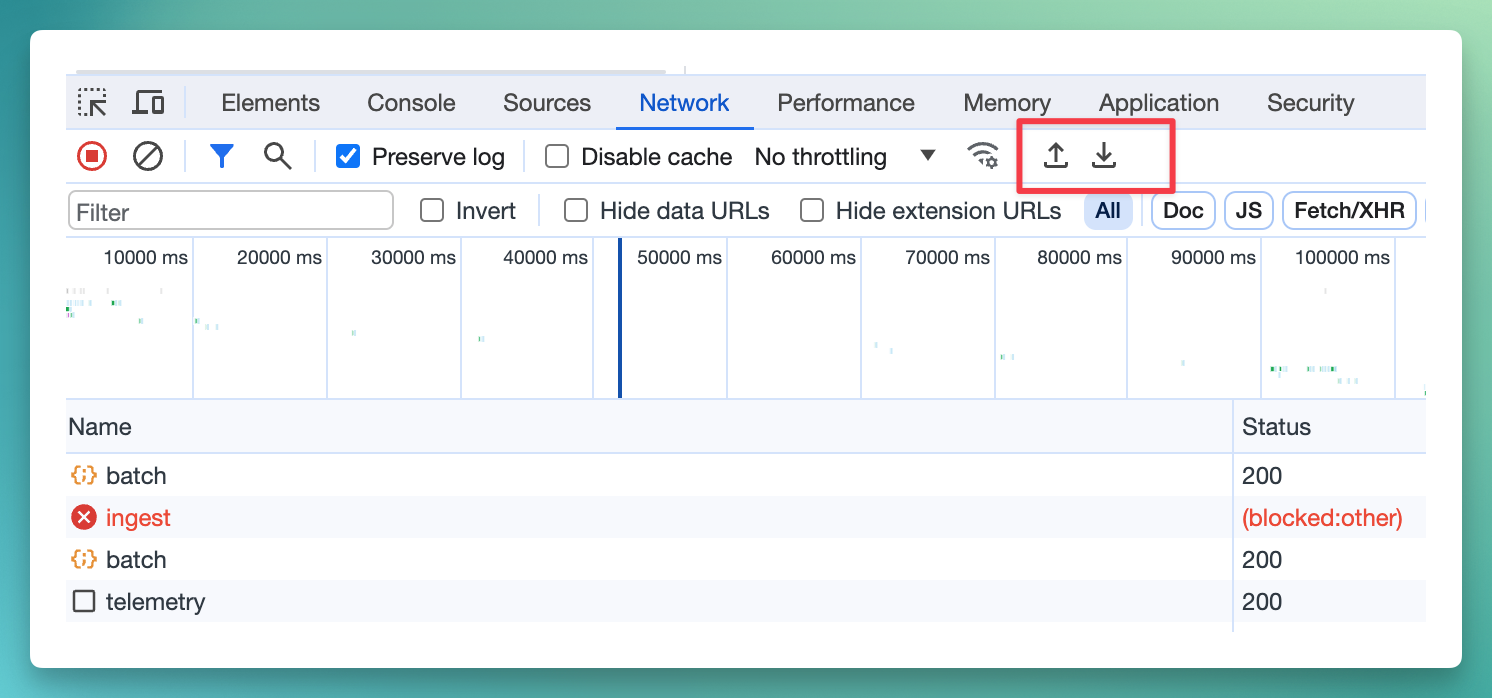
Finally, download the recorded network session as a HAR file (see screenshot)
Safari
-
Make sure you can see the Develop menu at the top, or follow these steps.
-
Navigate to the page where you experience the issue
-
Navigate to Develop > Show Web Inspector
-
Navigate to the
NetworkTab in the opened tool -
Check the
Preserve logoption -
Reproduce the issue
-
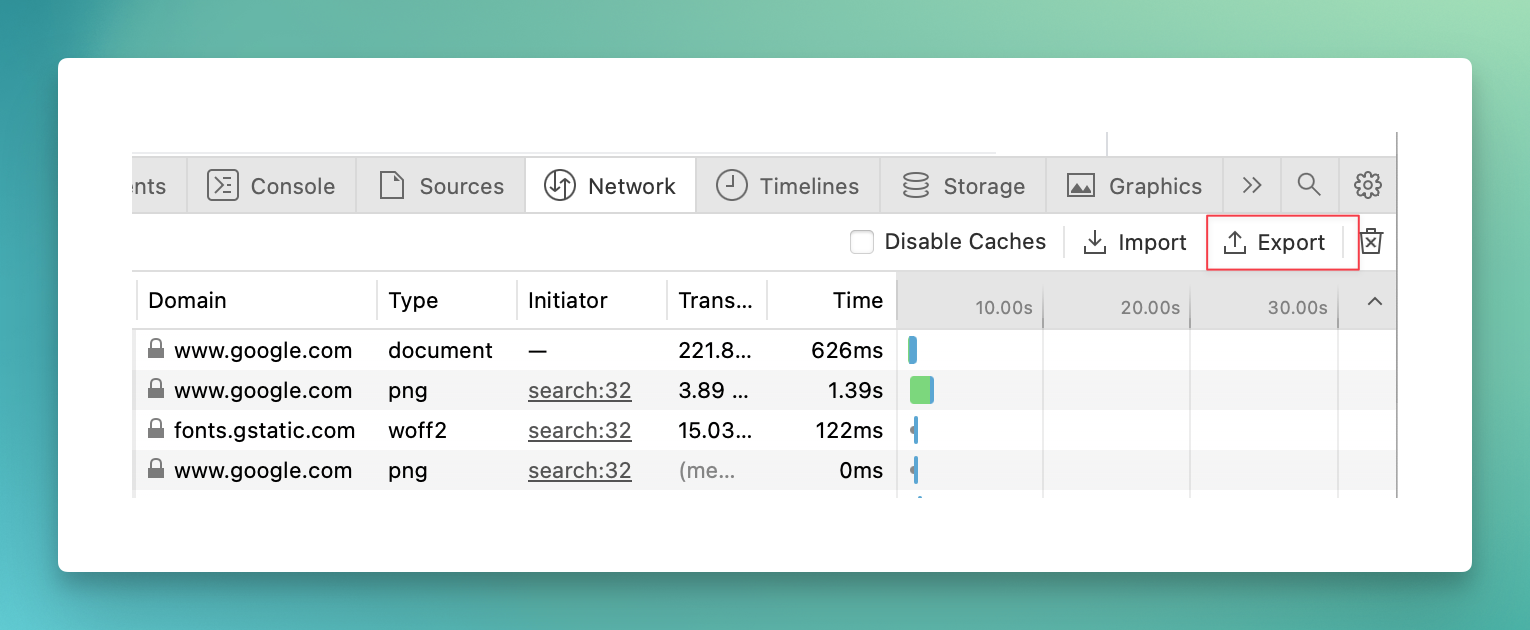
Now you can export the recorded network session as a HAR file (see screenshot)
Firefox
-
Navigate to the page where you experience the issue
-
Go to settings on the top-right (⋮) > More Tools > Tools for Web Developers
-
Navigate to the
NetworkTab in the opened tool -
Reproduce the issue
-
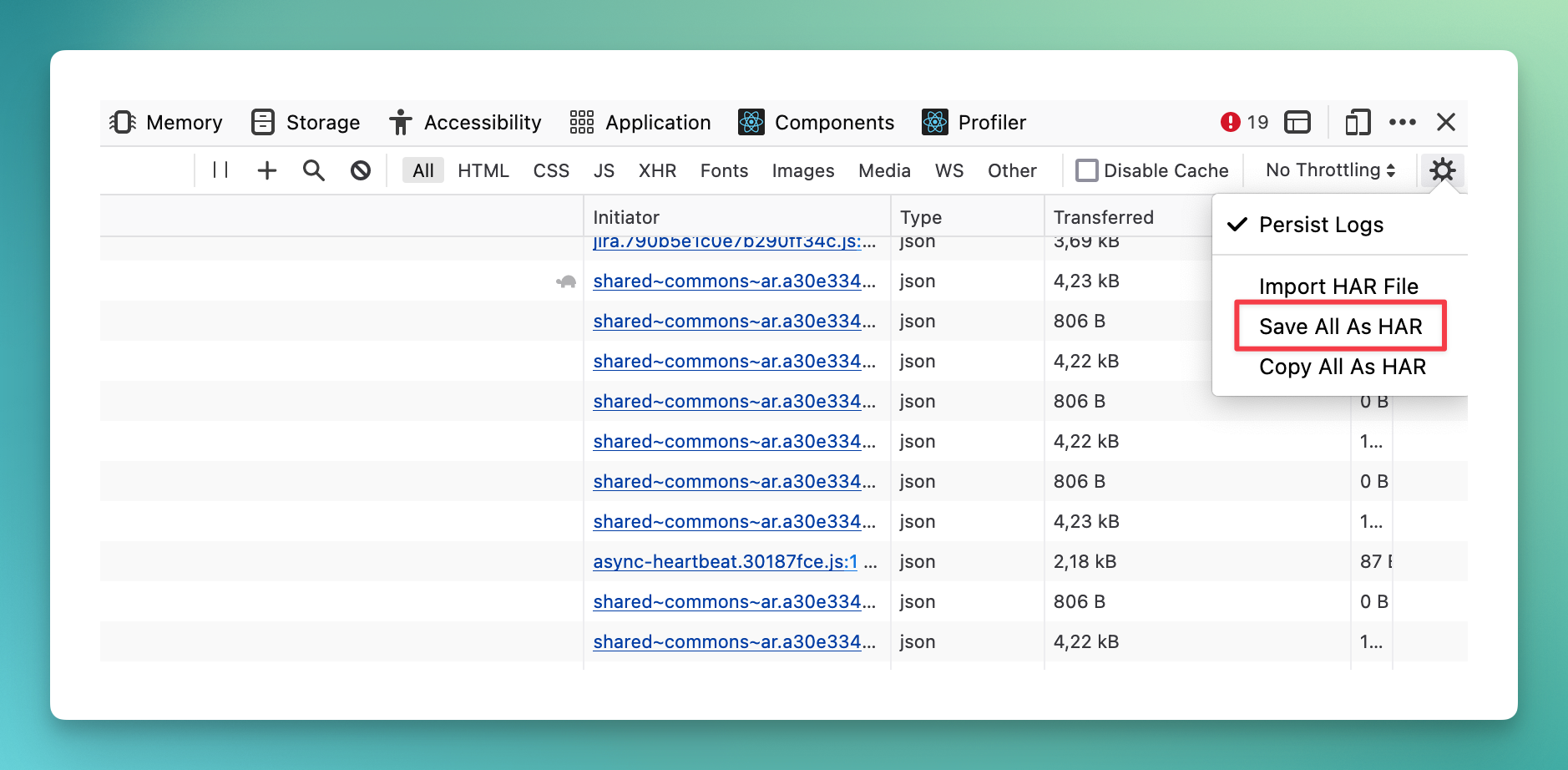
Finally, download the recorded network session as a HAR file by using the gear icon at the right (see screenshot)
Microsoft Edge
-
Navigate to the page where you experience the issue
-
Navigate to More tools > Developer Tools
-
Navigate to the
NetworkTab in the opened tool -
Check the
Preserve logoption -
Reproduce the issue
-
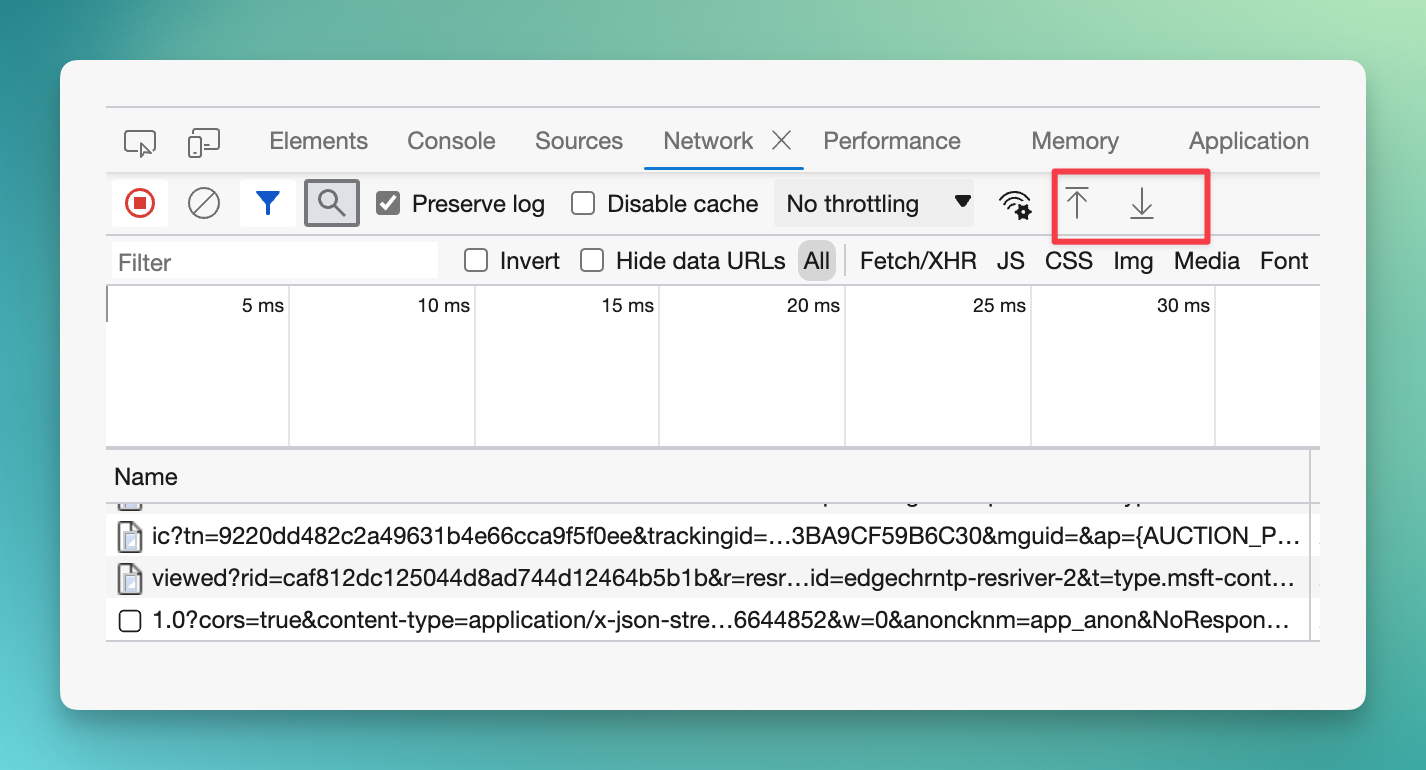
Trigger the save icon to export the recorded session as a HAR file (see screenshot)
Send the saved HAR file
If you have an existing support ticket, simply attach the file as attachments. If you need to create new request, you can do it via JSM support portal or email at support@narva.net.