Do you need to create labels and quickly add them to multiple issues in bulk?
Advanced Label Manager allows you to create labels in advance, add them to multiple issues at once, and remove them from a bulk of issues if needed.
Create a new label
To create a new label:
-
Go to Apps → Manage Labels
-
Click on Add button, enter a label name and select an issue
-
Finally, confirm it
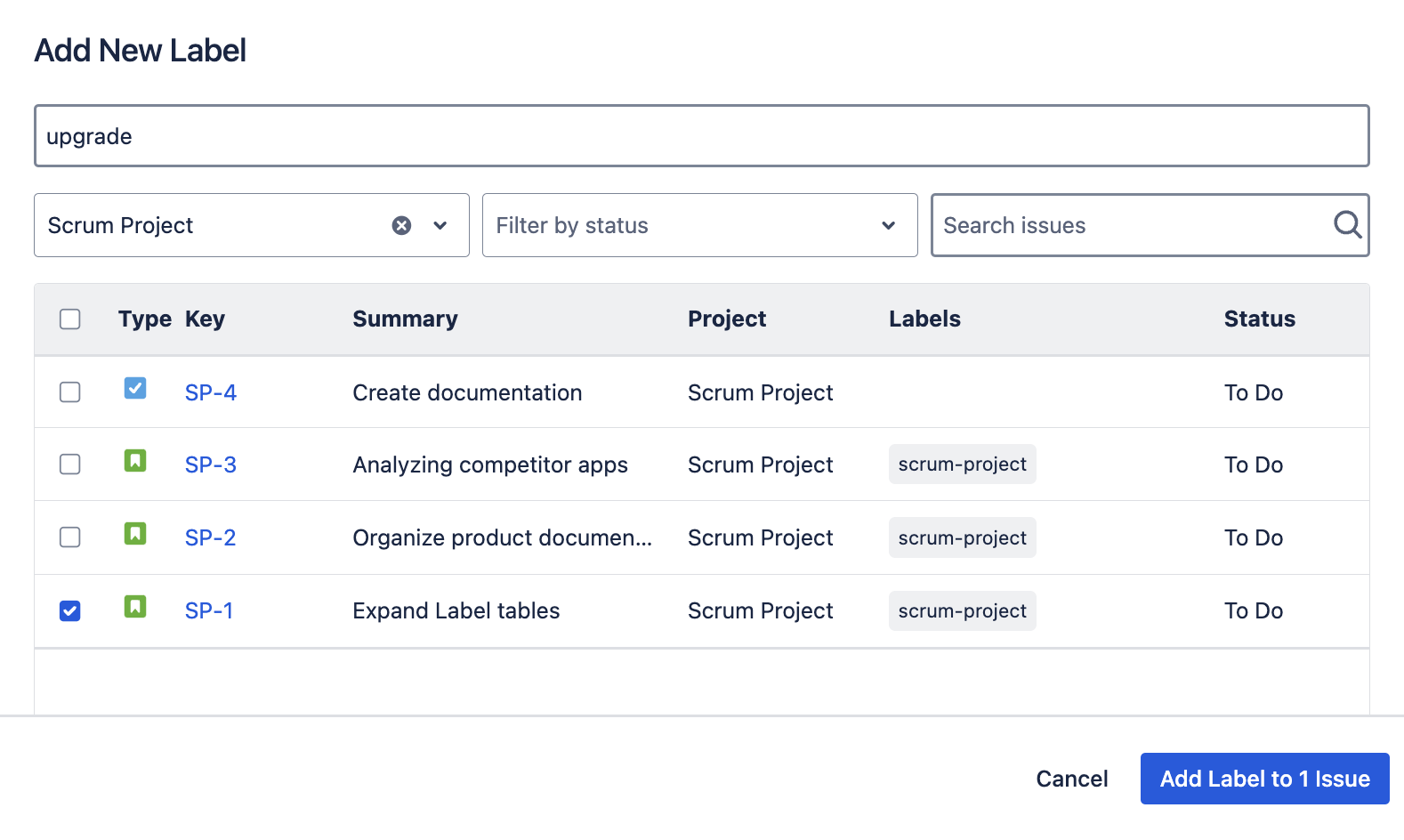
Please note: A new label has to be added to at least one issue so that it can be saved and reused later.
Add existing label to multiple Issues
In order to add an existing label to one or more issues:
-
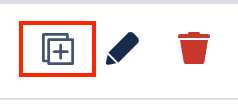
Click on the bulk add icon under Actions
-
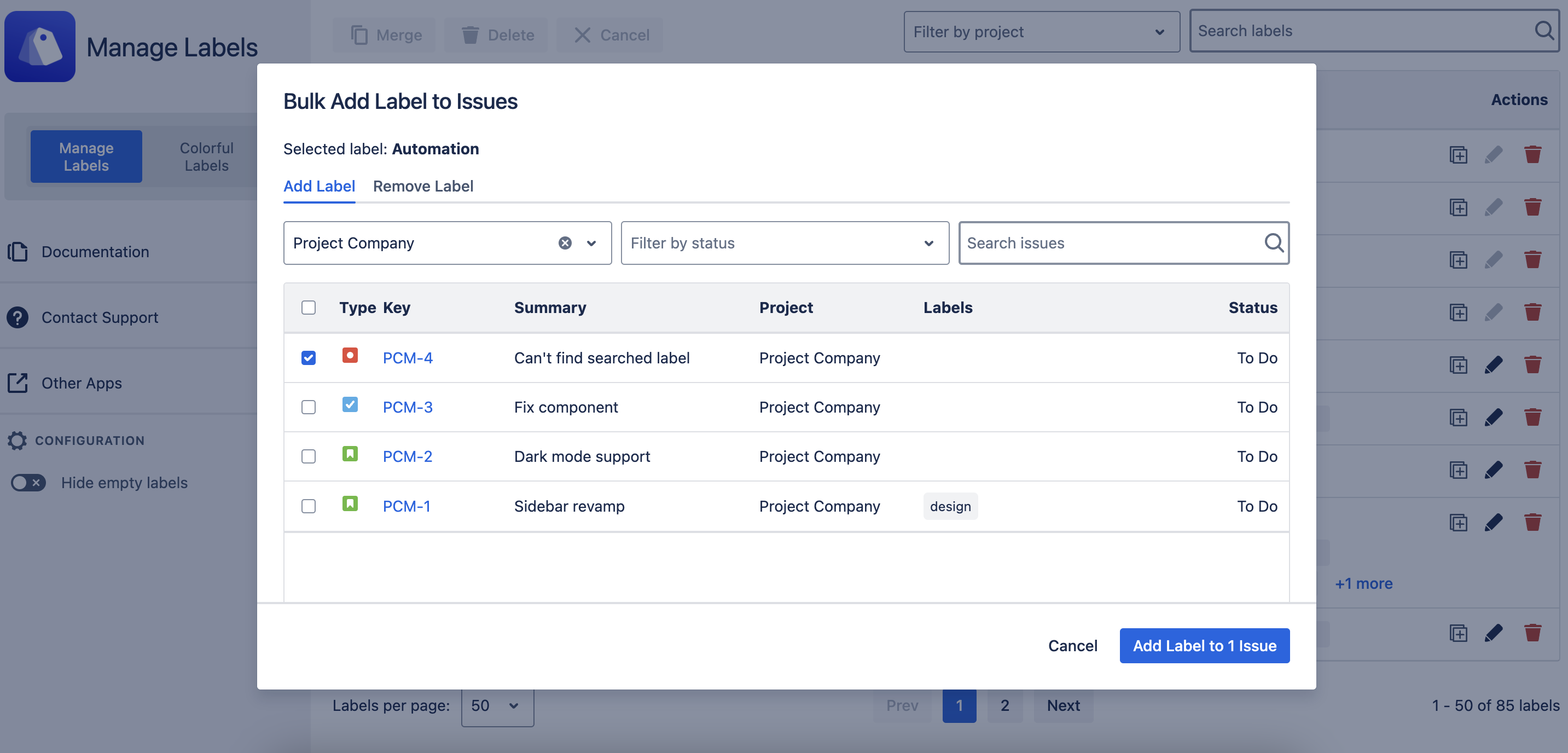
Select the issues
-
Confirm to add label
If you want to narrow down issues (when you have tons of them), you can use search and filter features.
Remove label from multiple Issues
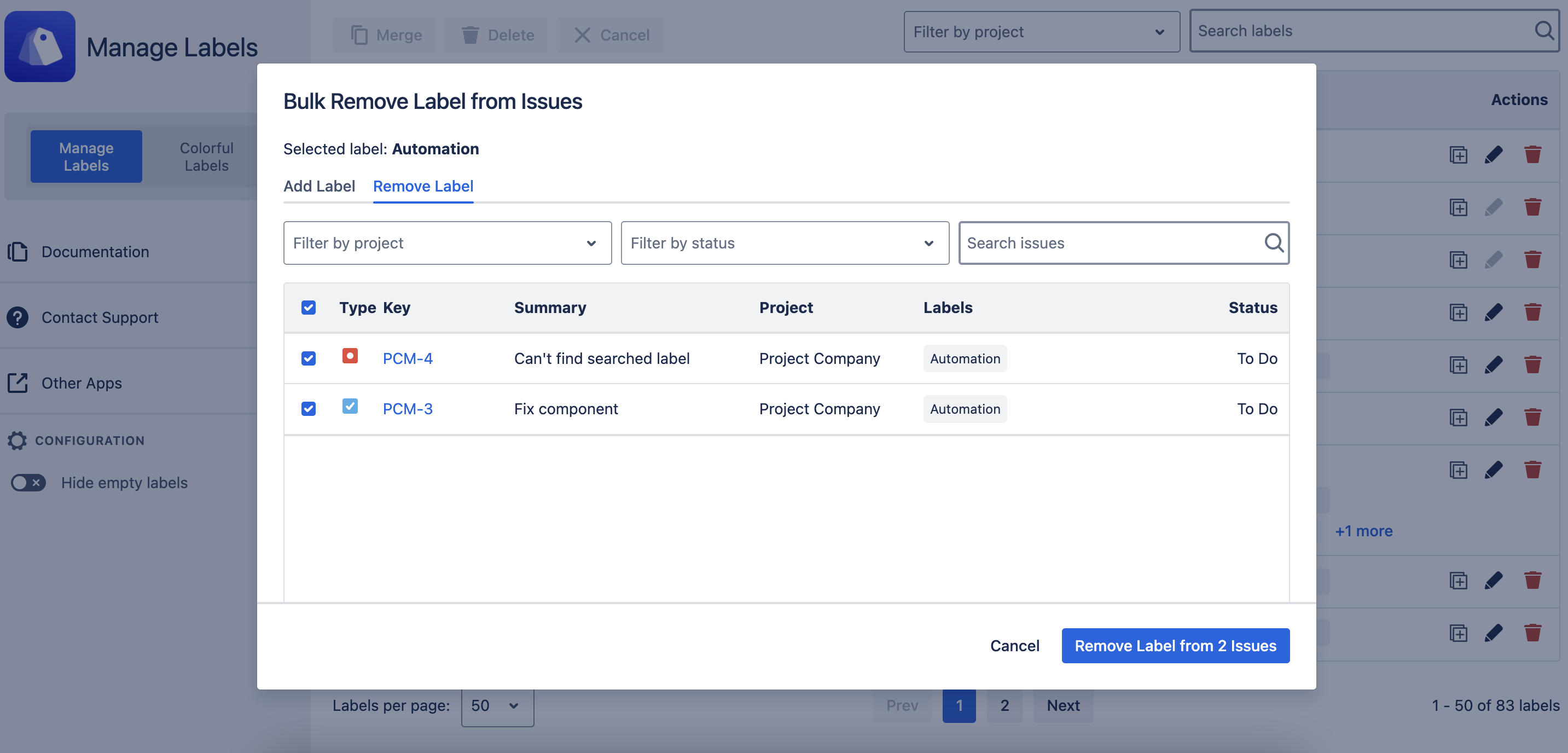
To remove labels from Jira issues, please click on the same icon:
-
Click on the delete icon under Actions.
-
Select issues that you’d like to remove the labels from.
-
Confirm to remove label.