
Create sequence diagrams, class diagrams, component diagrams, Gantt charts, mindmaps and more directly in Confluence, written as plain text using PlantUML syntax.
Installing the app
-
Go to the Marketplace listing: https://marketplace.atlassian.com/apps/2183031251
-
Click Get it now and follow the steps
-
Once installed, the macro is available on any page in your site — no further setup required.
Adding a diagram to a page
-
Open a Confluence page for editing.
-
Type
/plantuml(or open the Insert menu → Other macros → search "PlantUML"). -
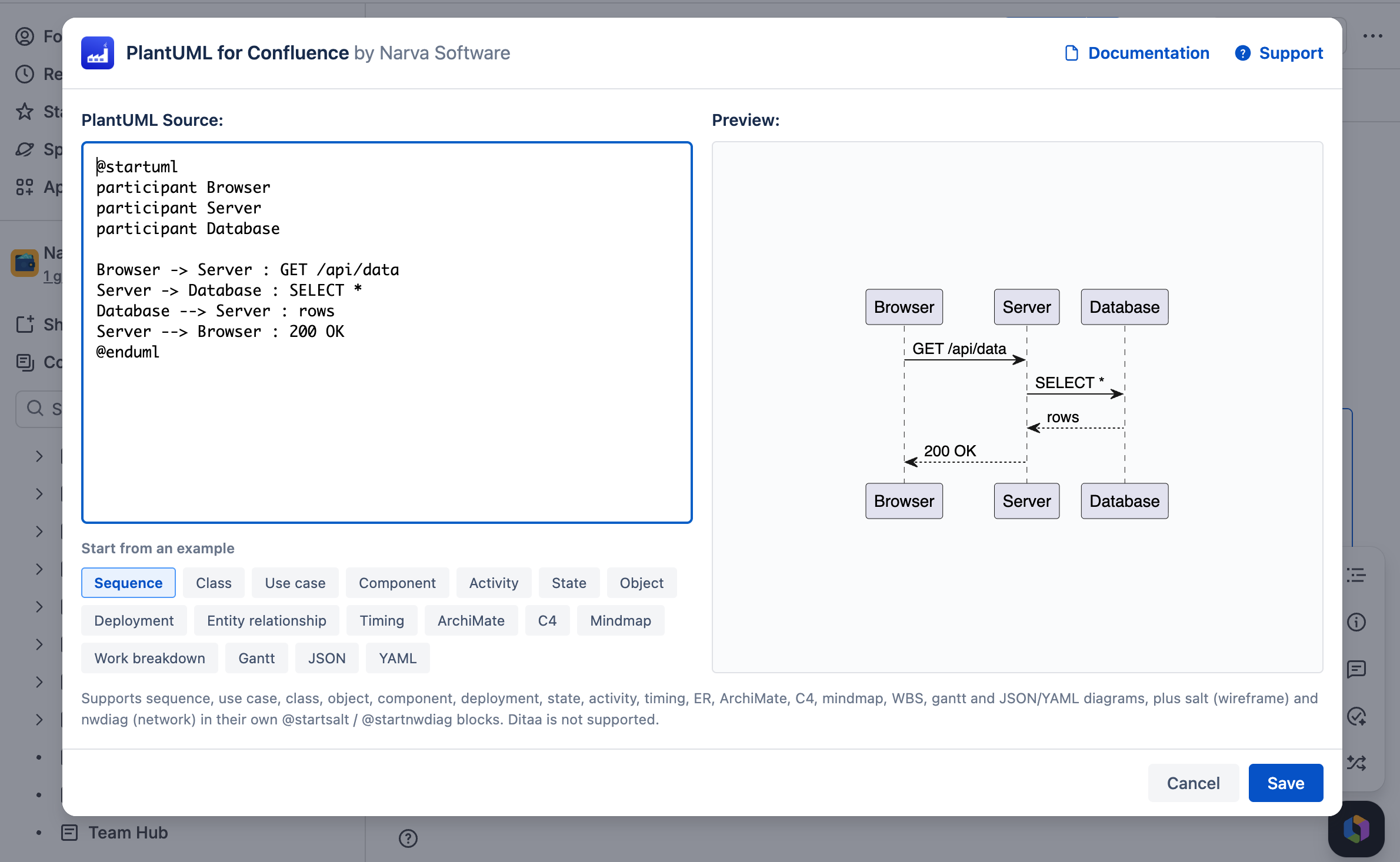
Select the PlantUML Diagrams macro to open the editor.
-
Pick a starting point:
-
Click one of the Start from an example chips below the editor (Sequence, Class, Use case, Component, Activity, State, Object, Deployment, Entity relationship, Timing, ArchiMate, Mindmap, Work breakdown, Gantt, JSON or YAML), or
-
Write your own diagram from scratch in the PlantUML Source panel.
Every diagram is wrapped in a start and end directive, for example
@startuml…@enduml. -
-
Watch the Preview panel update live as you type. Syntax errors are shown inline, with the line number where the problem was found.
-
Click Save Diagram to insert the diagram into the page, then publish the page as usual.
Loading an example replaces what is in the editor. If that overwrote something you had written, an undo link appears next to the examples to put it back.
Editing an existing diagram
Hover over the diagram on the page, click the pencil (edit) icon on the macro, make your changes in the editor, and click Save Diagram again.
Example: a simple sequence diagram
@startuml
Alice -> Bob : Hello Bob!
Bob --> Alice : Hi Alice!
@enduml
Supported diagram types
|
Type |
Opening directive |
|---|---|
|
Sequence, use case, class, object, component, deployment, state, activity, timing, ER, ArchiMate |
|
|
Mindmap |
|
|
Work breakdown structure |
|
|
Gantt chart |
|
|
JSON data |
|
|
YAML data |
|
!theme directives and standard-library includes such as !include <C4/C4_Context> are supported.
Salt (wireframe), ditaa and nwdiag diagrams are not supported. If you use one, the macro tells you rather than failing silently.
Tips
-
Nothing leaves your Atlassian environment. Diagrams are rendered entirely within your Atlassian environment by the real PlantUML engine. Your diagram text is never sent to Narva or to any external rendering service.
-
Need syntax help? See the official PlantUML documentation, or use the Documentation link in the top-right of the diagram editor.
Data Center to Cloud Migration
If you use PlantUML in Data Center and need to migrate them to Confluence Cloud, please refer to this page: Migrate PlantUML from Confluence Data Center to Cloud
Support
Questions or issues? Contact Narva Software via the support portal.