
This guide is for Confluence Data Center site that use PlantUML for Confluence by avono and are moving to Confluence Cloud.
The avono app is available for Data Center and Server only. There is no Cloud version, so after a migration your diagrams show up as Unknown macro: 'plantuml'. PlantUML for Confluence Cloud by Narva converts those migrated macros into its own diagrams, keeping each diagram's source exactly as it was. You don't need to export or re-create anything.
Diagrams are rendered inside Confluence, in the browser. Your diagram source is never sent to an external rendering server. The app is eligible for Atlassian's Runs on Atlassian program.
Cloud apps work differently from Data Center apps, so a few features do not carry over. They are listed below. We recommend trying the migration on a sandbox or test site first.
Migration path
-
Migrate from Data Center to Cloud using Cloud Migration Assistant.
-
Install PlantUML for Confluence Cloud on your Cloud site.
-
Convert the migrated diagrams with PlantUML for Confluence in Confluence settings.
You can do steps 1 and 2 in either order. Step 3 comes last, once your pages are in Cloud and the app is installed.
Step 1: Migrate Confluence
Follow Atlassian's Confluence Cloud Migration Assistant guide. The diagram source is stored in the page itself, so it migrates together with your pages. There is nothing extra to export.
After the migration, diagrams show as Unknown macro: 'plantuml' (or 'flowchart', 'plantumlrender', 'flowchartrender') until you convert them in step 3. That is expected, and your diagram source is safe.
Step 2: Install PlantUML for Confluence Cloud
-
Go to the Marketplace listing.
-
Click Get app and follow the prompts.
Step 3: Convert the migrated diagrams
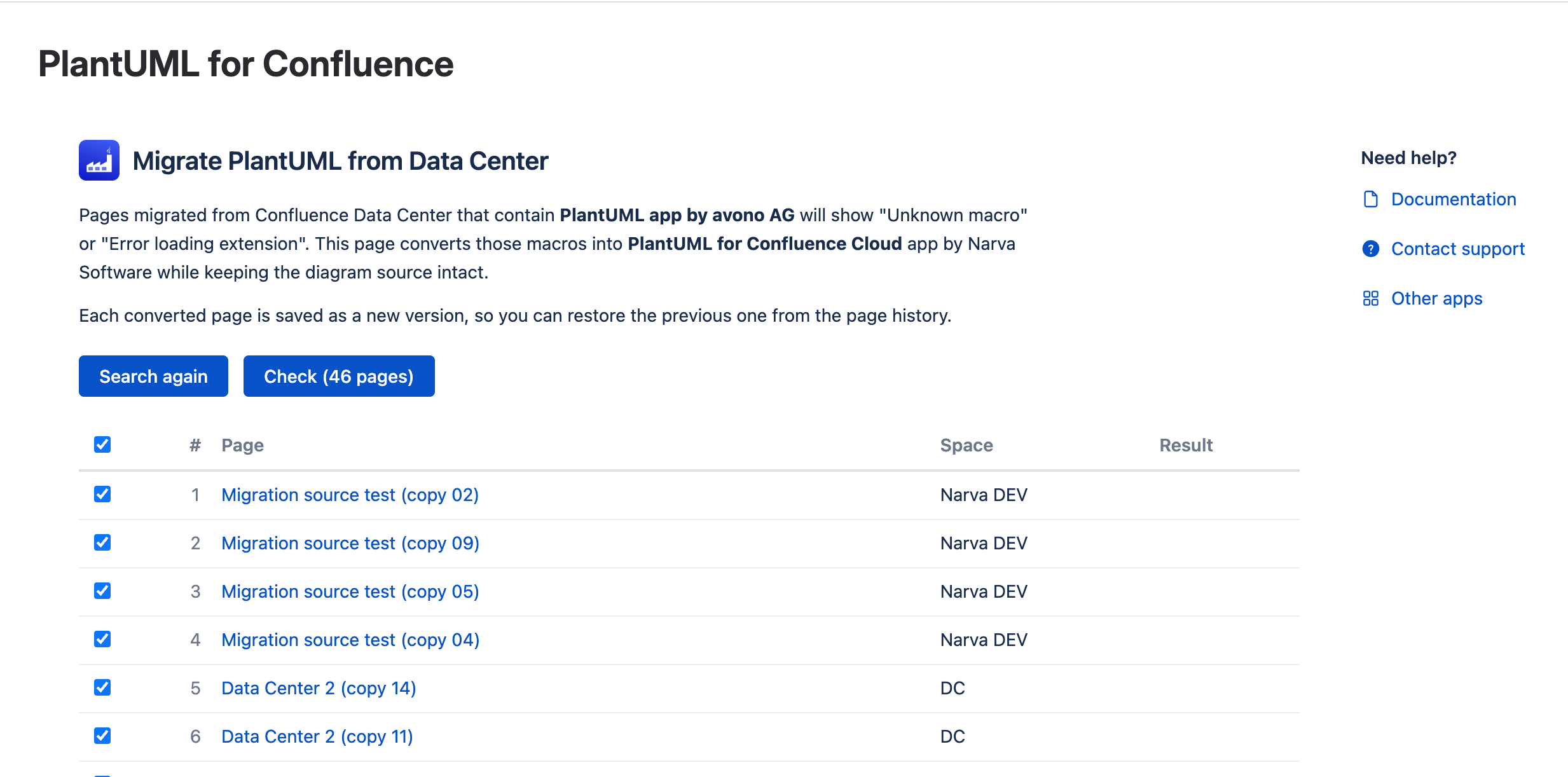
Migrated pages still contain the avono app’s macros. PlantUML for Confluence Cloud converts them into its own diagrams from a migration page in Confluence settings. You need to be a Confluence administrator to open it.
-
Go to Settings (gear icon) -> Apps -> PlantUML for Confluence.
-
Click Find pages to convert. The app lists every page and blog post that contains avono PlantUML diagrams.
-
Untick any pages you want to leave alone, then click Check pages. This shows for each page how many diagrams would be converted and what would be skipped. Nothing is changed yet.
-
Review the results, then click Convert pages.
Each converted page is saved as a new version, so you can restore the previous one from the page history. Keep the migration page open until the conversion finishes. Confluence search can take a few minutes to catch up after a migration, so if some pages are missing from the list, click Search again later.
That’s it. Your diagrams render again. 🎉
What is supported
|
Data Center macro |
On Cloud |
|---|---|
|
|
✅ Supported. |
|
|
✅ Supported. The diagram is read from the preformatted (code) block in the macro body. |
|
|
✅ Supported when the diagram is written in PlantUML, starting with |
|
|
Same as |
|
|
❌ Currently not supported. Contact us with usage details, we are open to adding this support. |
All common PlantUML diagram types are supported: sequence, use case, class, object, component, deployment, state, activity, timing, ER, ArchiMate, C4, mindmap, WBS, Gantt and JSON/YAML.
Differences from Data Center
-
Graphviz DOT flowcharts. On Data Center, a
flowchartmacro without@startumlwas drawn by Graphviz from DOT code. These are not supported yet. The conversion leaves them unchanged and lists them in its results, so they keep showing as an unknown macro. If you have them, please let us know so that we can find a solution. -
Common header and footer. The avono app let administrators define a header and footer that were added to every diagram, for example a shared
skinparamblock. These are global app settings and are not migrated. If you used them, add that content to the affected diagrams. -
Includes.
!includeof attachments, other pages, files or URLs is not supported, because diagrams cannot fetch content from outside the page. The built-in C4 library works:!include <C4/C4_Container>. -
Salt, ditaa, nwdiag and some newer diagram types, such as files diagrams (
@startfiles), are not supported. They are still converted, keeping their source, and the conversion results list them so you know which pages to check. -
Layout. Diagrams are laid out with Smetana, PlantUML's built-in port of Graphviz, so no Graphviz installation is needed. Most diagrams look the same as on Data Center; some may be arranged slightly differently.
Need help?
If a diagram does not look right after migrating, or you rely on one of the unsupported features above, please contact our support. We are happy to help you plan the migration and find a solution.