
Markdown Exporter for Confluence can also export Jira work items (issues) to Markdown — one work item at a time, with its metadata, description, comments and attachments. Use it to feed work items to LLMs, archive them, or move them into Git-based documentation.
The same app powers exports in both Confluence and Jira. If Markdown Exporter is already installed on your site, you need to connect the app to Jira (see instructions below).
Export a Jira work item to Markdown
-
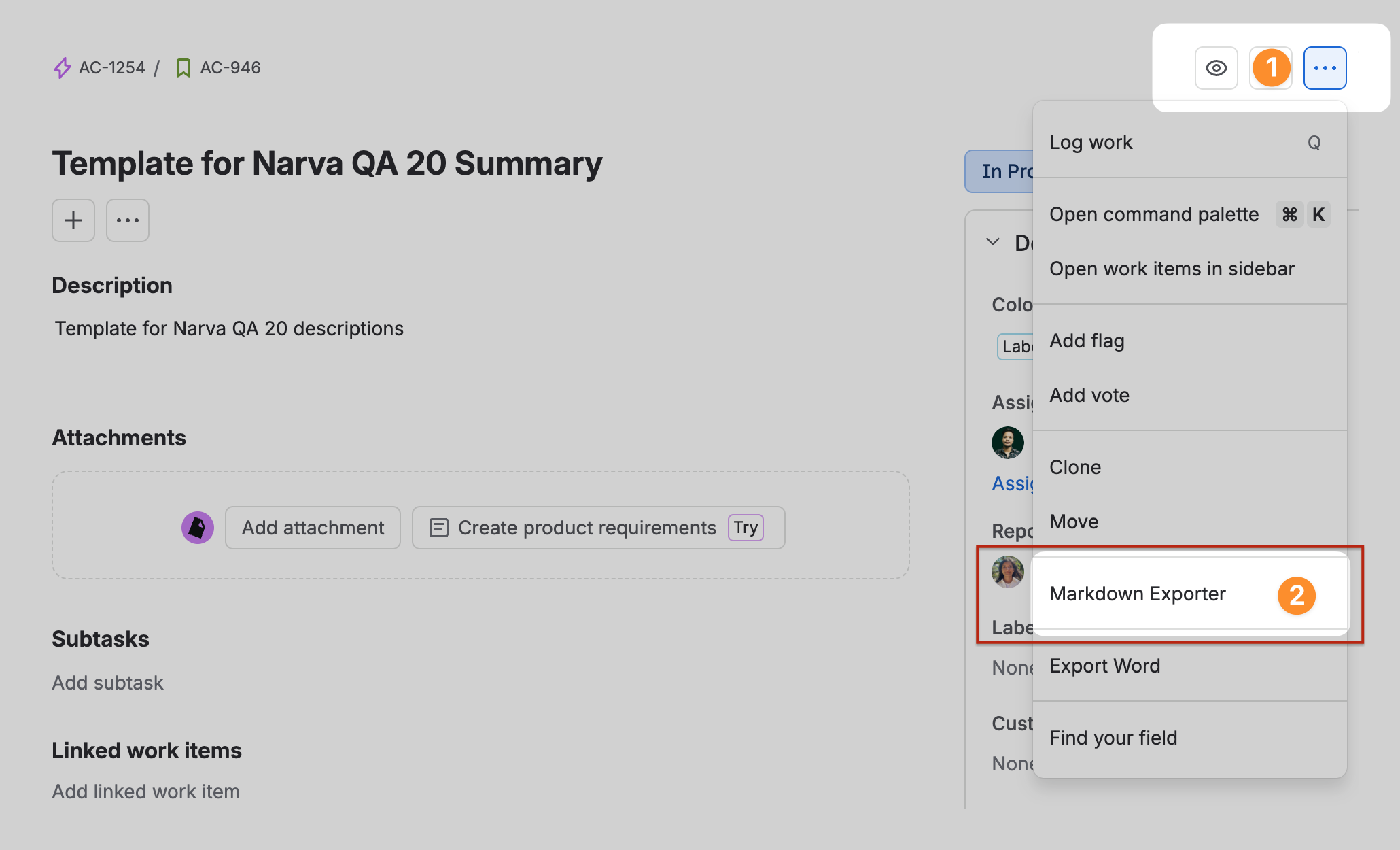
Open the work item and click the more actions (•••) menu at the top right.
-
Choose Markdown Exporter. The dialog opens with export options on the left and a live Markdown preview on the right.
-
Tick the sections you want to include (see below).
-
Either Copy the Markdown from the preview pane, or click Export to download it as a file.
Export Options
-
Metadata — key, summary, type, status, resolution, priority, assignee, reporter, created / updated dates, project, parent, labels, components and fix versions, written as YAML frontmatter.
-
Custom fields — any custom field with a simple value (text, number, select, user), added to the frontmatter under its field name.
-
Description — converted from Jira rich text to Markdown.
-
Comments — every comment, in order, with author and timestamp.
-
Attachments — images, PDFs and other files, downloaded and bundled next to the Markdown.
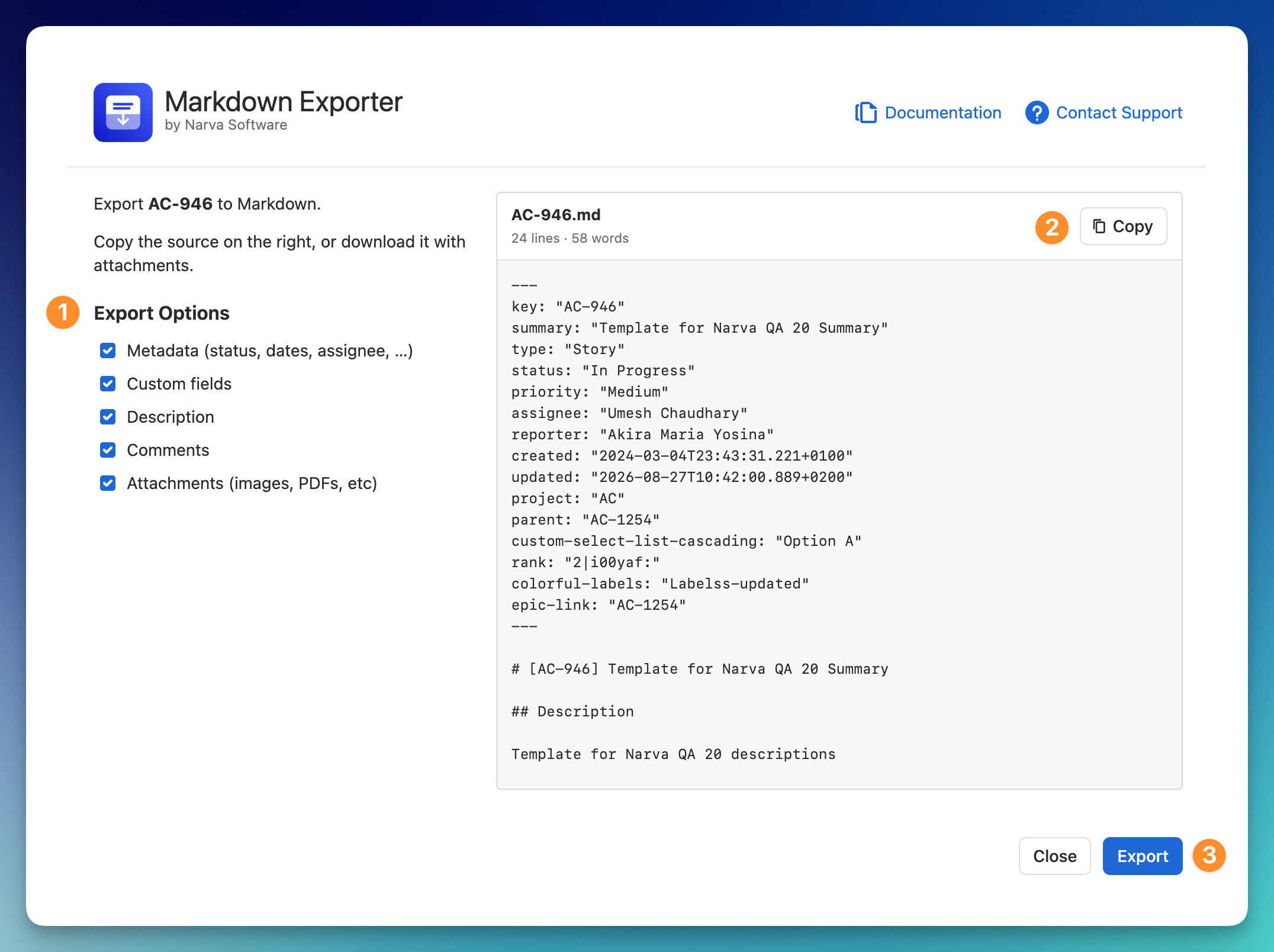
Use Copy to Clipboard
The Copy button on the preview pane copies the Markdown source to your clipboard. Attachment and image links stay as absolute Jira URLs, since the clipboard has no local folder to point at.
Export (download) including attachments
-
If you include attachments and at least one downloads successfully, you get a ZIP file containing the Markdown file plus an
attachments/folder. Image and attachment links in the Markdown are rewritten to point at that folder (./attachments/…). -
If there are no attachments, or you leave them out, you get a single .md file.
Connect the app to Jira
-
Existing users
If you have already installed the app in Confluence, you need to upgrade it and connect it to Jira.
-
Go to Confluence settings → Marketplace apps → Manage apps
-
Follow the redirect, which will bring you to Connected apps page in Atlassian Admin
-
Find the app and go to the Connections tab and connect Jira
-
New users (installations)
You can install the app from the Marketplace listing: Markdown Exporter for Confluence. During the installation step, don’t forget to check Jira.
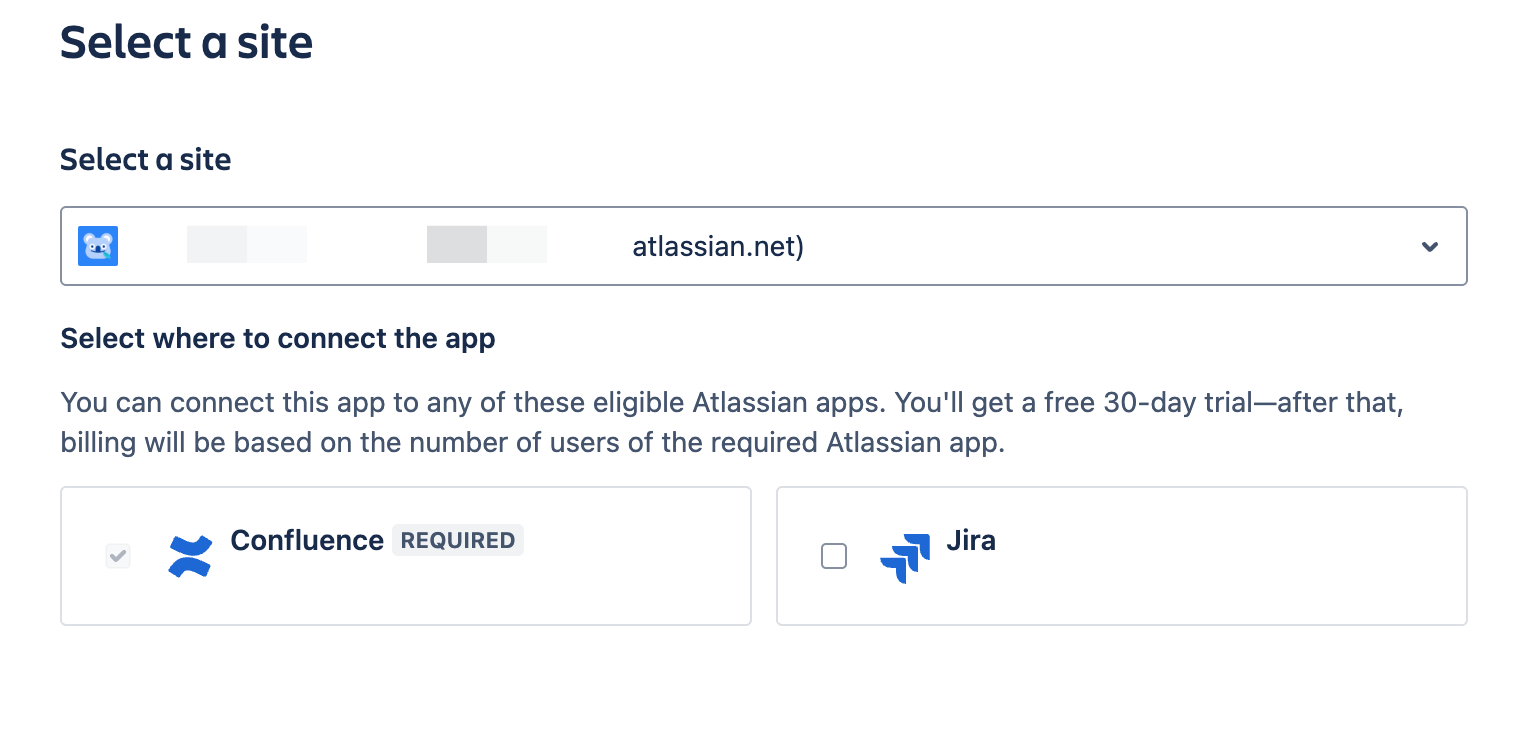
After the trial period, you will only pay for the Confluence version (Jira is complimentary for this app).
For Confluence to Markdown export, check this page: Export Confluence pages to Markdown