
In most cases, HTML macros migrated from Confluence Data Center can work without any changes. However, some macros rely on Data Center behaviour that Cloud doesn't allow, and these need small code changes. This page lists those differences and explains how to adapt your code, using the AI prompt built into HTML Macro.
Before you migrate: test your pages in a sandbox or test instance before migrating production. See Migrate HTML Macro from Data Center to Cloud for the migration steps.
Why Cloud behaves differently
In Data Center, HTML macros are rendered straight into the Confluence page. All macros on a page share one browser window, so they can read each other's variables, change the Confluence page, read the page URL and use Confluence's own JavaScript (such as AJS or jQuery).
In Confluence Cloud, app macros run in its own isolated, sandboxed iframe. This keeps your site secure, but it means each macro is a separate mini web page.
Limitations and workarounds
|
Data Center |
Cloud |
Workaround |
|---|---|---|
|
Shares variables or data between macros, e.g. one macro sets |
The second macro sees |
Make each macro self-contained: copy the shared data into every macro that needs it, or merge the related macros into one. You could also host shared Javascript and CSS in CDN and reuse across all macros. |
|
Reads the page URL or query parameters, e.g. |
The value is always empty. The macro can't see the Confluence page URL. |
Move the switch into the macro itself: a constant at the top of the code (e.g. |
|
Reads or changes elements of the Confluence page outside the macro (page title, sidebar, header, other content), or adds page-wide CSS |
Nothing happens. The macro can only reach elements inside itself. |
Keep all HTML, CSS and JavaScript about the macro's own content. Changing the Confluence page itself is not possible in Cloud. |
|
Calls the Confluence REST API using the logged-in user's session |
The request is blocked because the macro runs on a different domain. |
Not supported. Use |
|
Redirects the page, e.g. |
The Confluence page doesn't navigate. |
Use normal links ( |
|
Uses WebSocket, EventSource, Web Workers, camera/microphone, geolocation or fullscreen |
Blocked inside the sandbox. |
Poll with |
|
Uses Confluence JavaScript: |
These objects don't exist, so the script stops with an error. |
Include any library you need (e.g. jQuery) in the macro yourself. Confluence user and page details aren't available. |
Example: macros that share data
In Data Center, these two macros on the same page worked together. In Cloud, the second macro can't see window.MY_CONFIG, so its list stays empty.
<!-- Macro 1 -->
<script>
  window.MY_CONFIG = { team: "Platform", links: ["https://example.com/a", "https://example.com/b"] };
</script>

<!-- Macro 2 -->
<ul id="links"></ul>
<script>
  window.MY_CONFIG.links.forEach(function (url) {
    document.getElementById("links").innerHTML += '<li><a href="' + url + '">' + url + '</a></li>';
  });
</script>
Fix: put the configuration inside the macro that uses it, and delete Macro 1 if nothing else needs it.
Alternatively, you can host the shared Javascript and CSS in a CDN and use the CDN links across all macros.
<ul id="links"></ul>
<script>
  var MY_CONFIG = { team: "Platform", links: ["https://example.com/a", "https://example.com/b"] };
  MY_CONFIG.links.forEach(function (url) {
    document.getElementById("links").innerHTML += '<li><a href="' + url + '" target="_blank">' + url + '</a></li>';
  });
</script>
Example: page URL parameters
In Data Center, this code showed a pop-up only when the page was opened with ?test=2025-11-12. In Cloud, window.location.search is always empty.
// Data Center
var params = new URLSearchParams(window.location.search);
var testDate = params.get("test"); // always null in Cloud
if (testDate) {
  showPopup(testDate);
}
Fix: set the test value in the macro. Leave it empty for normal use, so the macro behaves exactly as it did when no parameter was passed.
// Cloud: set a date while testing, e.g. "2025-11-12". Leave empty ("") for normal use.
var TEST_DATE = "";
if (TEST_DATE) {
  showPopup(TEST_DATE);
}
Adapt your code with the AI prompt
HTML Macro includes a ready-made AI prompt that explains the Cloud rules above to an AI assistant (Claude, ChatGPT, Gemini or similar). You can use it to convert existing Data Center code.
Step 1: Copy your existing code
-
Open the page in edit mode.
-
Select the HTML macro and click Edit (pencil icon).
-
Copy all code from the editor and keep a copy somewhere safe. You can also find the original code in the page history.
-
If the macro reads data from other macros on the same page, copy their code too.
Step 2: Copy the AI prompt
-
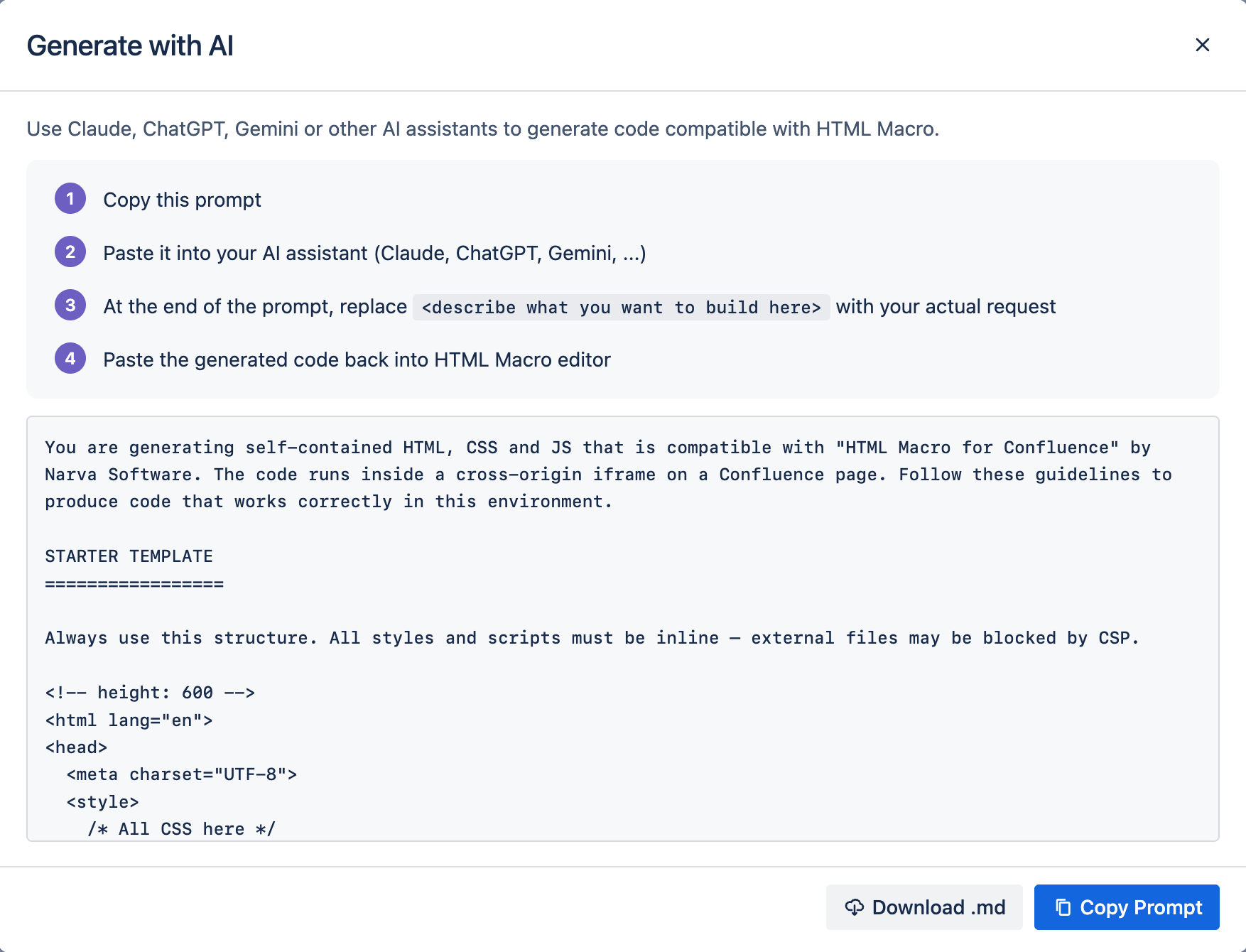
In the macro editor, click Generate with AI.
-
Click Copy Prompt, or Download .md to save it as a file.
Step 3: Ask the AI to convert your code
-
Open your AI assistant and paste the prompt.
-
At the very end, replace the line
Now generate the code for: <describe what you want to build here>with a conversion request.Now convert the following code from Data Center so it works with HTML Macro in Confluence Cloud. -
Paste your Data Center code in next line.
Step 4: Test and save
-
Paste the converted code into the macro editor and check the live preview on the right.
-
Click Save, publish the page and test it in view mode.
-
If it doesn't work, open the browser developer console (F12), copy the error messages and paste them back into the AI chat with:
This error appears in the browser console. Please fix it.
Need help?
If a macro still doesn't work after following this guide, contact Narva support and include the original code and a screenshot.