
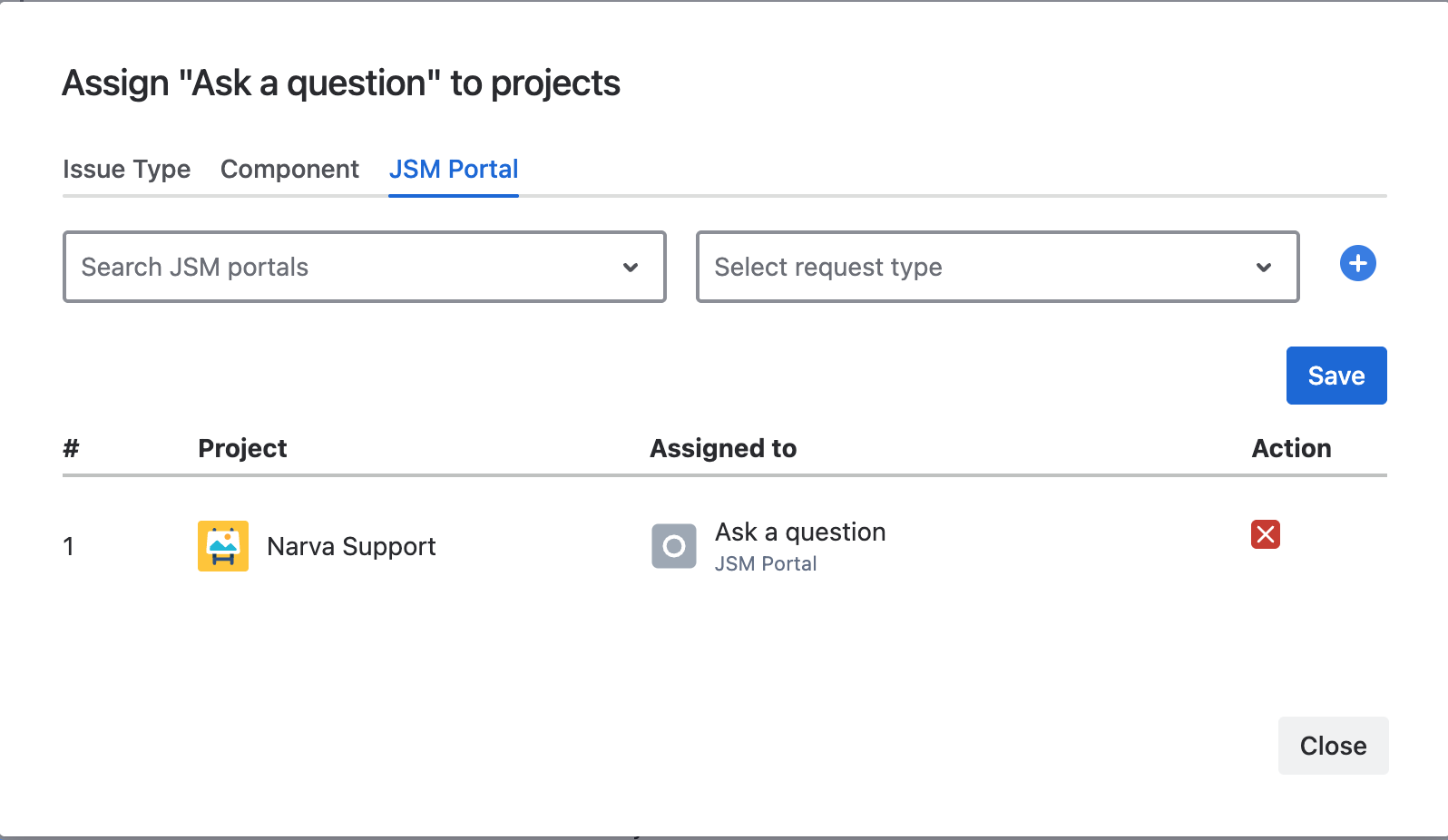
Templates can be applied to customer requests in the JSM portal, not just on the agent create screen. Assign a template to a portal and a request type, and request fields will be pre-filled for customers raising that request.
Assign a template to a request type
-
Go to Sidebar → Apps → Issue Templates.
-
Find the template you want to use and click Assign to project.
-
Open the JSM Portal tab.
-
Select a portal. The request type list is then loaded for that portal.
-
Select a request type (for example Report a system problem).
-
To assign several at once, click the + button to add another row. You can add up to 5 rows at a time.
-
Click Save.
If a portal and request type pair already has a template, the form will tell you before saving — each pair can only have one template.
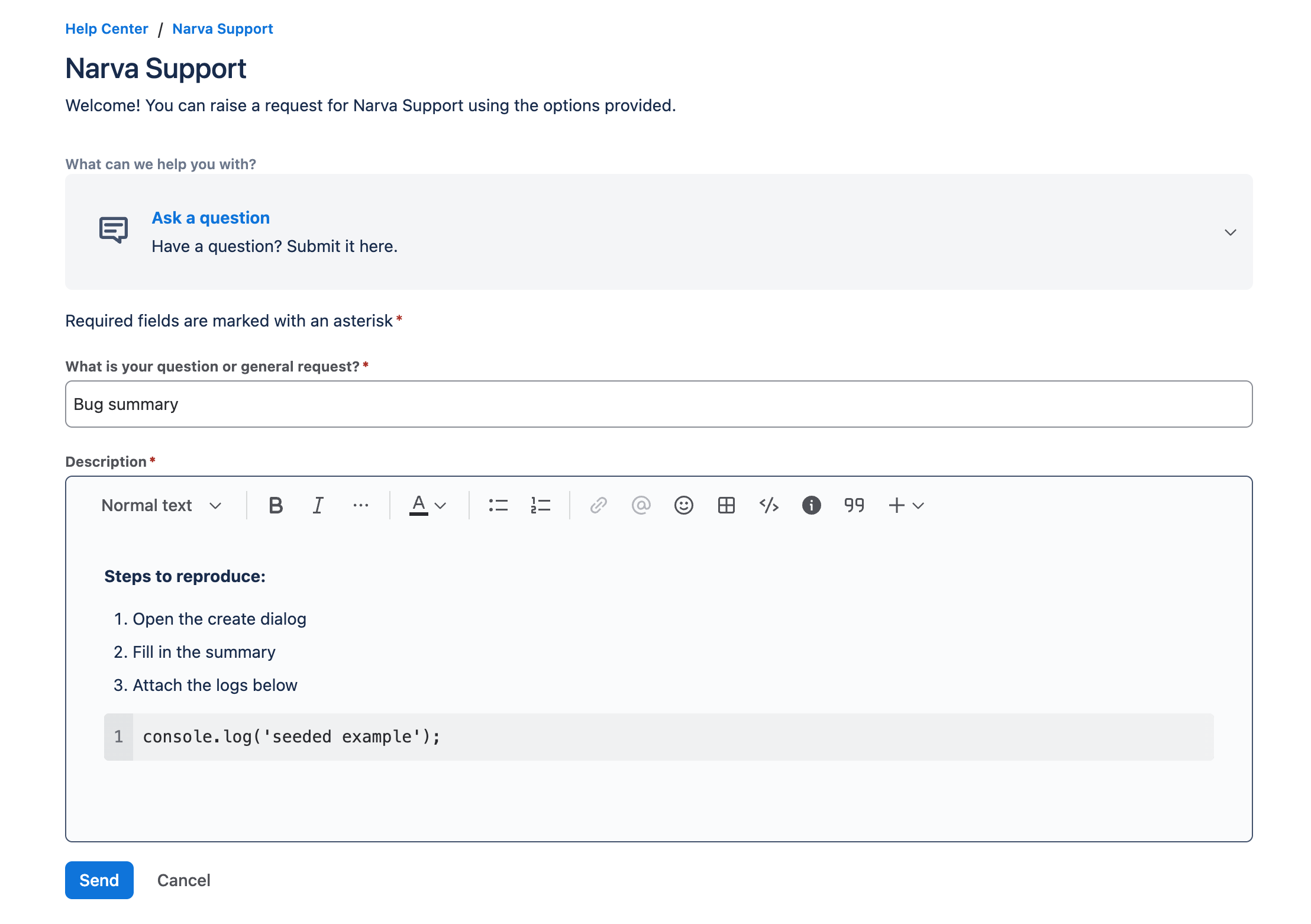
What your customers see
When a customer opens that request type in the portal, the template content is filled in automatically, ready for them to edit. Fields that are not shown on the portal form are simply ignored.
Portal and issue type assignments are separate.
Assigning a template to a portal request type does not affect the agent create screen, and an Issue Type assignment does not affect the portal. If you want the template in both places, assign it on both tabs.